Use a detail shot when a feature is mentioned
Cut from the main shot to a short insert that shows the material or feature the narration has just described. Use an approved reference where the detail is already visible. A gentle push is easier to review than a full turn that exposes unphotographed surfaces.
Use an empty setting to give the viewer context
A quiet kitchen counter or studio shelf gives the viewer a place to orient themselves before the main product shot. Prompt for time of day, lighting direction, and a small background movement. Use text-to-video when the frame can work without the exact product.
Hold long enough for an ending
Plan a quiet ending with usable space for an approved overlay. Keep the object on a predictable side of the frame and the background simple. Add the final message in your editor so the approved copy stays readable.
Check continuity before a clip enters the cut
Play the preceding and following shots around the insert. Look for a jump in color temperature, a change in packaging, or a distracting reversed move. Keep real packaging and feature details as the reference for the final edit.
How to put it into practice
- Mark a line or a cut in the main video that needs context, a detail insert, or a pause.
- Choose text-to-video for a setting and image-to-video for a shot that shows the specific item.
- Trim the accepted section and review the edit at its destination size.
GenVid generation test
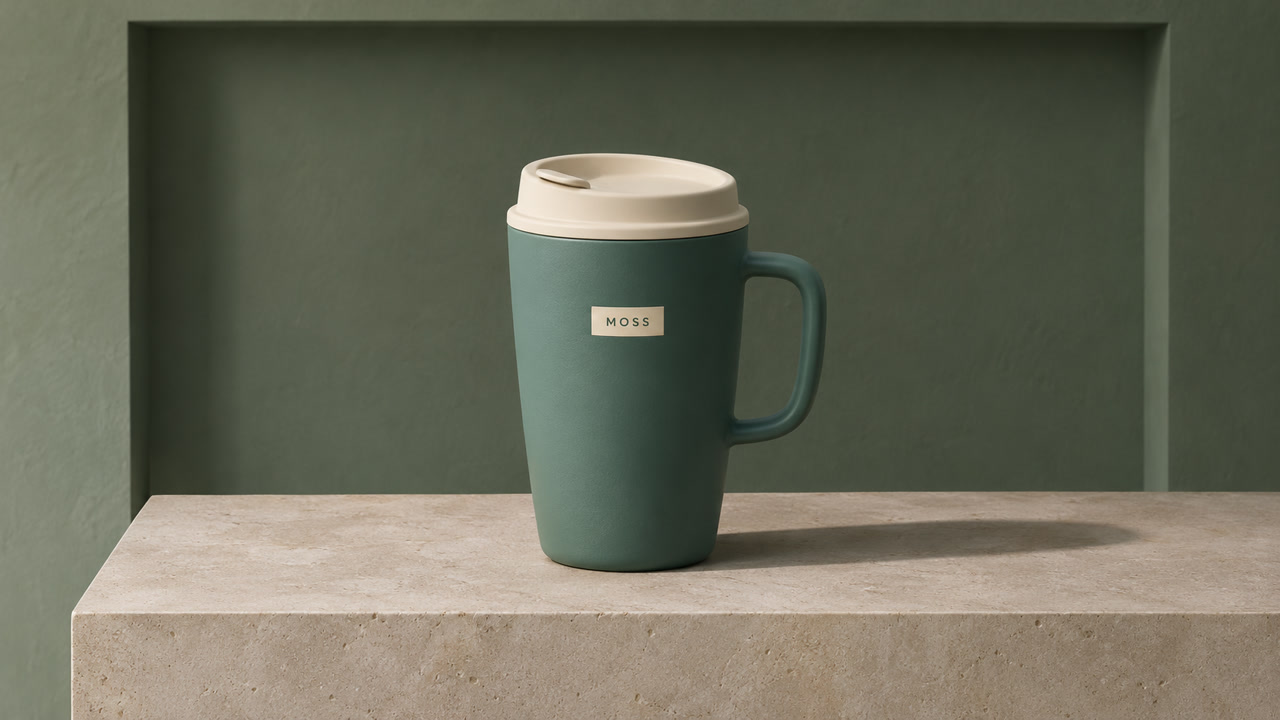
Wan 3.0, 4 seconds, 16:9, 720p requested. Each example is a single run using the GenVid model integration. Web previews are resized and silent. The feature insert and closing hold used this still. The kitchen cutaway used text only.
Three briefs to copy and adapt
Each brief describes an intended result and what to check during review.
Material detail for a feature insert
Begin with the reference image of a matte teal travel mug on a pale stone plinth. Make a slow push toward the cream lid and the ceramic surface. Keep the mug stationary, preserve the single MOSS label, and let soft side light show the finish. Use a single continuous shot.
Cut under a line about materials. Check the lid profile, ceramic texture, and label before using the take.
Kitchen context cutaway
A quiet pale stone kitchen counter beside a window in soft morning light, with a diffuse leaf shadow moving gently across the wall. Fixed camera, neutral warm palette, discreet natural texture, one continuous shot. Leave the worktop empty.
Place before the first product reveal. Compare light direction and color with the adjacent shot.
Closing product hold
Start from the reference image and hold on the teal travel mug centered on the stone plinth. Keep the camera locked, the cream lid and MOSS label visible, and the lighting stable. Keep the frame quiet for the final two seconds and leave clean space beside the mug for edit overlays.
Use after the demonstration. Check for a quiet ending and keep the label legible.
Compare your options
| Option | Useful for | What to check |
|---|---|---|
| Image-to-video | Detail shots and closing holds with an approved photo | Verify shape, lettering, and visible parts. |
| Text-to-video | Context shots where brand identity is optional | Match the main footage in color, framing, and tone. |
Frequently asked questions
What counts as product B-roll?
A detail insert, setting cutaway, or closing product view can all support the main footage.
Should I upload a product photo?
Use a verified photo when viewers need to recognize your item or see a particular feature.
How long should a B-roll shot be?
Allow enough time to trim the entry and exit. Set final clip length to the narration, action, or beat it supports.
Can I add the product name in the prompt?
You can request it, then check spelling and placement on the export. Add approved copy as an editable overlay when exact text matters.
How can I match my main footage?
Keep the same aspect ratio, choose a similar light direction, and test the two clips together in the edit.
Sources
Product and model names belong to their respective owners. GenVid is an independent platform.